|
|
PRESENTING THE IMPROVEMENTS IN VERSION 1.250 OF TOWSOFTUpdate scheduled on August 19 at 7:00AM (EST)
|
|
|
|
MANAGEMENT OF QUOTES VIA THE INTRANET |
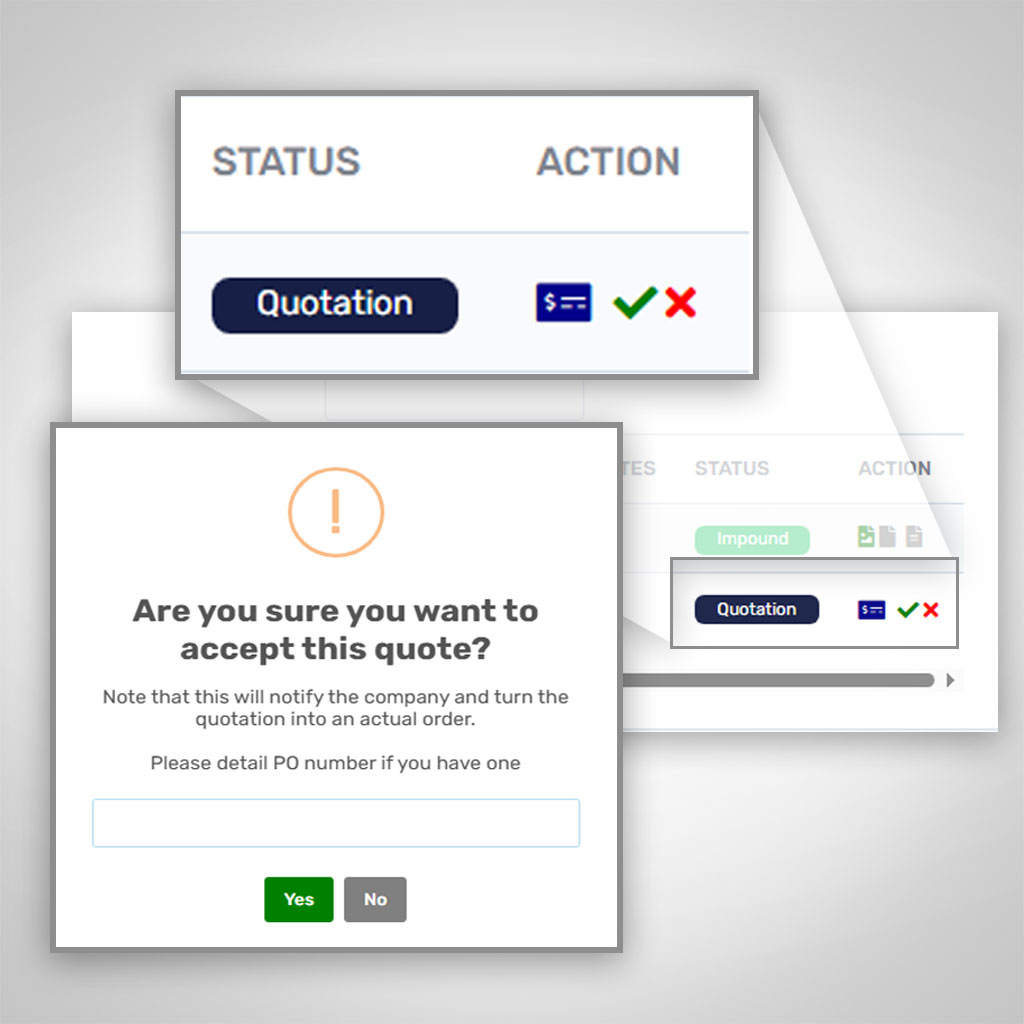
If you already have a few clients for whom you have created an intranet access, you will be happy to know that you will now be able to present them with quotations via the portal and allow them to accept or decline them. |
|
|
|
How to use / test
PREREQUISITE - Create a fictitious client and create an intranet access for this client.
- Clients Zone > Clients > Click the intranet button for the client in question > Click the Intranet options button, set "Default visibility of orders for an intranet user" to All client orders
- There must be quotes pending a response for the intranet client in question.
PROCEDURE - Log in to the client's intranet portal and validate that calls with QUOTATION status are visible.
- Validate that the actions to view, approve and decline the quote are available and functional.
DOCUMENTATION
|
|
|
|
DOCUMENTS & VOICE MESSAGES IN TOWSOFT MESSENGER |
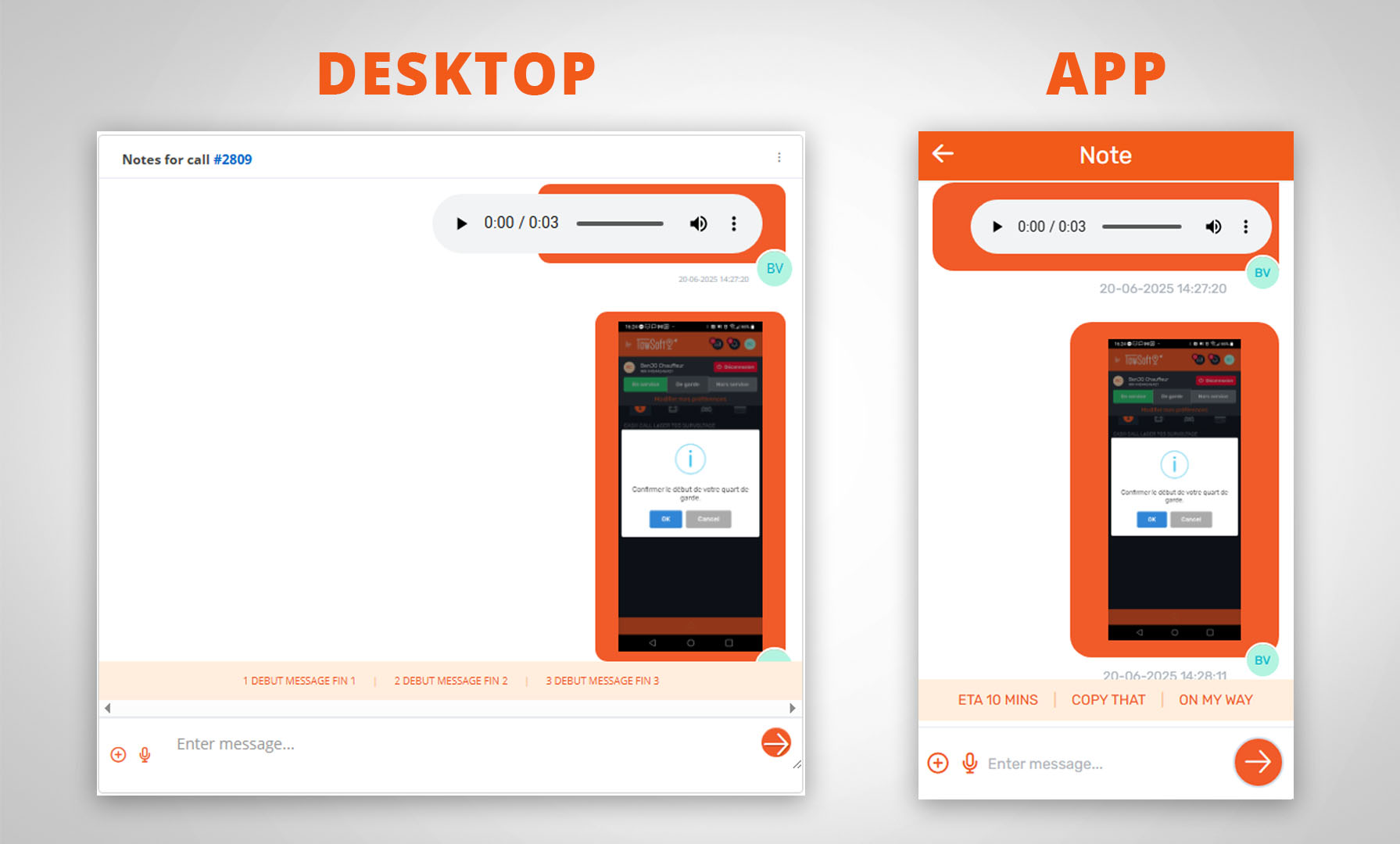
| At last, we're improving the "field" communication tool: TowSoft Messenger! Whether it's one-on-one chat, group chat, or call notes between dispatchers and drivers, you can now leave voice messages and add documents and images.
We deliver the features you expect from a messaging tool...with the difference that these records remain in your TowSoft for traceability 🔎. |
|
|
|
How to use / test
PREREQUISITE- Ensure that the application has the required access (images, microphone, etc.) on the mobile with which the feature is tested.
PROCEDURE - In the call screen, click Note in the actions menu, then click the microphone icon in the lower left corner to record a voice message.
- Listen to the message, delete the message if it is not good and confirm when it is.
- Also click on the "+" icon to add photos or documents.
- Ensure messages, photos and videos are viewable in call notes afterwards.
- Try these same operations, but via the Desktop Call Screen > "Notes for call" section.
|
|
|
|
|
|
|
|
DARK MODE, IN THE TS4 MOBILE APP In the user settings on the mobile app, the "Dark Mode" option will allow users to configure whether they want to use this mode permanently or according to the default setting of their phone.
* An update to the latest version of the app may be required to see this option. |
|
|
|
TIMESTAMPS AND POSITIONS OF SIGNATURES (DISCLAIMERS) When collecting signatures, the mobile app will store additional data (date/time, latitude/longitude positions) and display them to you when consulting them from the desktop in order to reinforce the evidence.
|
|
How to use / test
PREREQUISITE- A disclaimer must have been completed and added from the mobile
- Permissions must be given for the app to access the location (see for Android & iOS).
PROCEDURE - In the call screen on the desktop, move the cursor over the name of the added disclaimer, a message ribbon should appear to display the date of signing and the GPS coordinates of the capture location;
- When clicking on the eye icon to view the disclaimer, the date of signature and the GPS coordinates of the capture location will be displayed at the bottom of the window, below the signature;
- When printing the disclaimer (PDF), this same information will also be below the signature line;
- When the location icon is clicked, the capture position will be displayed on a map with the time stamp below.
|
|
|
|
RETRACE PREVIOUSLY IDENTIFIED DAMAGES ON NEW INSPECTIONS (DISCLAIMERS) Ability to display damage identified on previous inspections when doing a new inspection in the same call. |
|
How to use / test
PREREQUISITE- Have at least one disclaimer with inspection already added on a call.
PROCEDURE - Go to the call with a disclaimer (w/ inspection) that has already been done, start creating a new dislaimer with inspection, then validate that the button "See damage identified on previous inspections" is activated by default and that the damage from previous inspections is present on the chosen vehicle model.
- Confirm that the pencil color for adding new damage is orange.
- Confirm that if the button is disabled, damage identified during previous inspections disappears and that the pencil for adding damage is black.
- Confirm that a legend to differentiate between initial damage and new damage is displayed when viewing the inspection via the desktop and when printing to PDF.
|
|
|
|
DISPATCH SCHEDULED CALLS ON A TRUCK-WORKLOAD PLANNING CALENDAR New display allowing for an easier planning of the workload: a calendar view (daily, 3 days, 7 days) according to your trucks through which future dispatches can be made.
*Note that this view will soon allow to do this for drivers as well.
How to use / test
PREREQUISITE
- You need to have a least one scheduled call (date > today) pending dispatch.
PROCEDURE
- In the Scheduled calls tab, click on the Resource planning view button at the top right of the table
- When the view is open in a new window, try dragging an scheduled call from the left section to the calendar and dropping it on a truck line. Confirm that the future dispatch window appears when dropping.
- Attempt to drag a future dispatch made to one truck to another truck in order to reassign the dispatch.
|
|
|
|
INTRANET: EXPORTING CALLS Added options for your customers to export (CSV/Print/Copy/PDF) calls available in their intranet. |
|
How to use / test
PREREQUISITE
PROCEDURE - In a call table (Ongoing, Completed, Impounded), click on the "Export" button in the upper left corner and select one of the options among Copy, CSV, Excel, Print.
- Validate that the chosen option correctly exports the table data.
|
|
|
|
INTRANET: DISPLAY OF ALL CALLS Added a new access level allowing the client's intranet users to see not only orders made through the portal, but also other calls that were manually created for the client in TowSoft.
|
|
How to use / test
PREREQUISITE
- Clients Zone > Clients > Click the intranet button for the client in question > Click the Intranet options button, set "Default visibility of orders for an intranet user" to All client orders
- There must be manually created calls that are ongoing and completed for the customer in question.
PROCEDURE - Log in to the client's intranet portal and validate that calls created manually via TowSoft are visible, whether they are ongoing or completed.
|
|
|
|
BILLING NOTES, UPON CALL CREATION Adjustment so that customer-visible notes on invoices (and other documents) can be added from the get-go, when creating the call.
|
|
|
|
CLIENT OPTION: DO NOT SEND ATTACHMENTS BY EMAIL Option inserted in a client's settings preventing the addition of attachments for any invoice sent via email to this client. |
|
How to use / test
PROCEDURE - Check the "Do not include attachments when sending invoice" box for a client.
- Create a call for this client or validate on an existing call with images or documents that, when sending an invoice, the message "This client doesn't allow attachments with the invoice" appears in the place where the photos and documents to attach would normally be.
|
|
|
|
INDICATION OF “EXCESS AMOUNT” ON CALLS WITH COVERAGE Clear display of the excess amount to be charged to the customer in the call screen (desktop & mobile) when coverage is exceeded. |
|
|
|
|
|
Follow us on social media |
|
|
.png)