|
|
DISCOVER WHAT'S NEW IN TOWSOFT VERSION 1.260Scheduled Update: June 16 at 7:00 AM (EST)
|
|
|
[NEW] INVOICE PAYMENT VIA QR CODE |
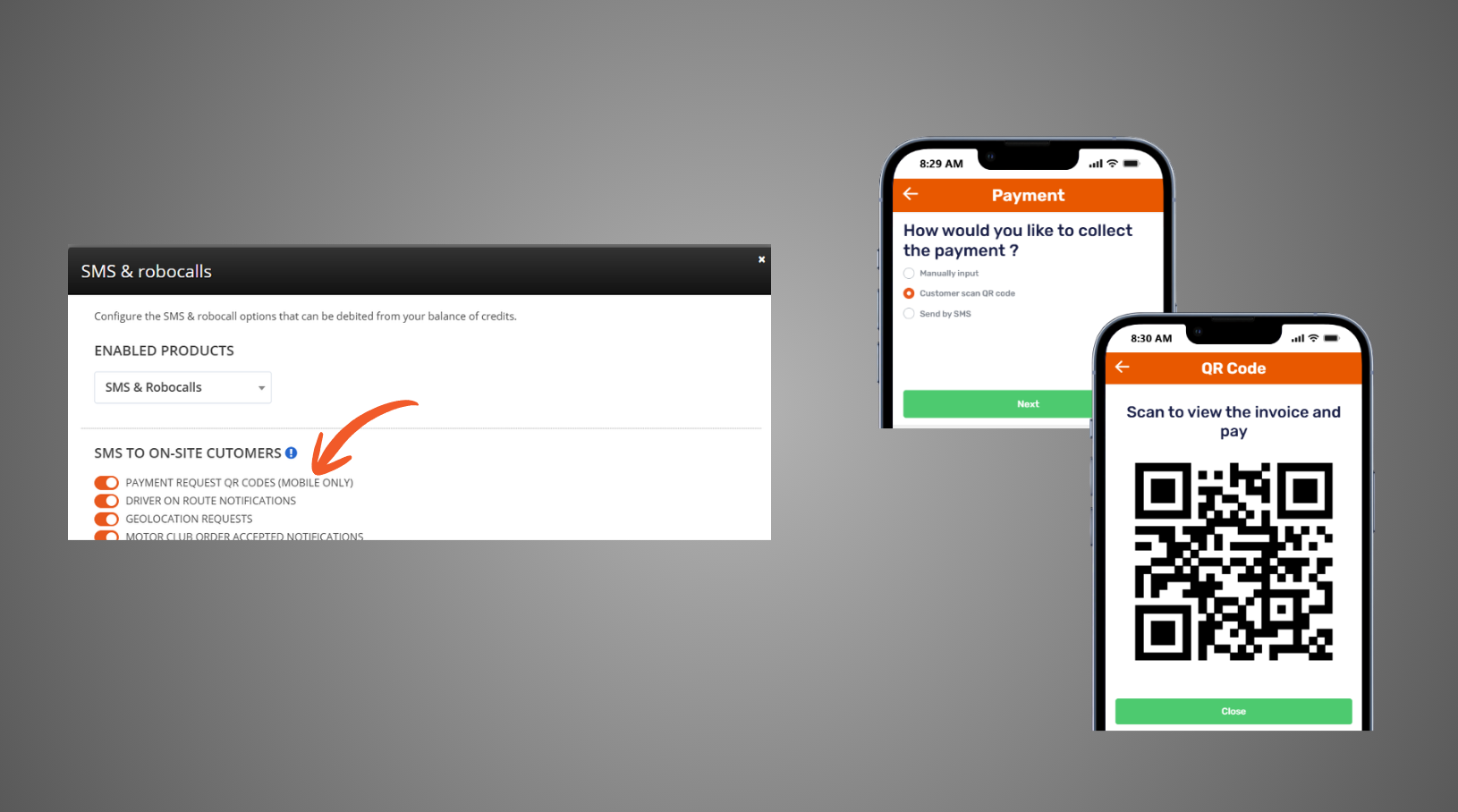
A new QR code payment option is now available. Drivers can generate a QR code directly from the invoice tab of the call, allowing customers to scan it with their mobile device and securely complete a credit card payment online.
*This feature requires certain prerequisites, including an active integration with a supported payment processor (Stripe or Global Payments). |
|
|
|
How to Test?
PREREQUISITES : - The Credit module must be enabled (contact our support team to activate it).
- An active Stripe or Global Payments 3DS integration must be configured.
- Then, navigate to Settings > Companies and Options
- On the right, click SMS & Robocalls
- Enable the Payment request QR codes (mobile only) option
PROCEDURE : - Open a TS4 Call Screen.
- Go to the Invoice tab.
- Click Pay and select a given credit card (Visa, MC, AMEX) as the payment method.
- Select the QR Code option to generate a code for the customer.
- Scan the QR code using a mobile device.
- Verify that the invoice opens correctly and that the credit card payment process can be completed successfully.
|
|
|
|
NEW: CUSTOM CALL-TAKING LAYOUTS |
Administrators can now create custom call-taking layouts to better organize information and rename fields when creating calls. This enhancement helps improve data entry speed, consistency, and overall call quality. |
|
|
|
How to Test?
PREREQUISITES:
- In Settings > Companies & options > Call options, click open the CALL TAKING dropdown menu, then check the "Use call taking layouts" option and don't forget to Save (ie. Modify options).
PROCEDURE: - Navigate to Settings > Call taking layouts
- Click Add.
- Enter a name and description for the layout.
- Create the layout, then configure it as needed:
- Reorder sections and fields
- Customize field labels to your liking
- Mark fields as required or optional
- Control field visibility
- Save the layout.
- Create a new call.
- In the Call Details section, select the Call taking layout you wish to use.
- Confirm that the selected layout matches the configuration you created.
|
|
|
|
NEW: CHARGES BASED ON WEIGHT OR LENGTH |
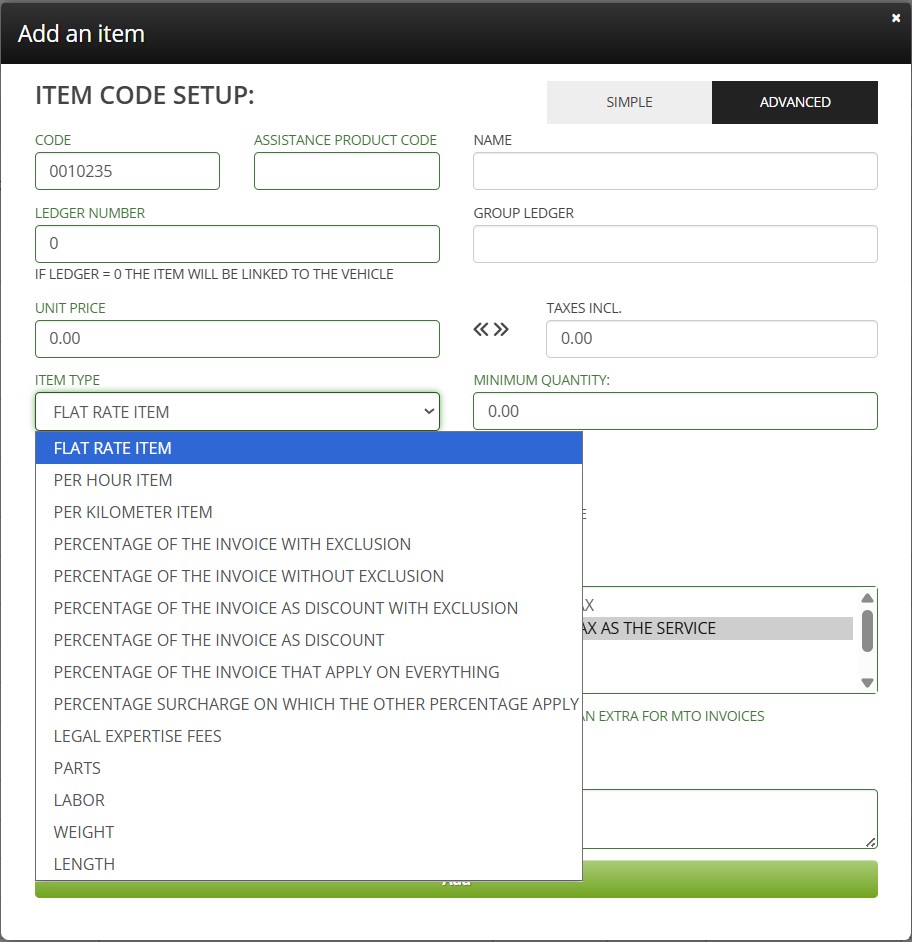
The Charges module has been enhanced with the addition of two new charge types based on weight and length. When these charge types are used, the values entered in the Weight or Length fields in the Vehicle or Charge section will act as multipliers for the predefined unit price, allowing charges to be calculated automatically based on the specified quantity. |
|
|
|
|
|
|
– OTHER NEW TOWSOFT FEATURES – |
|
|
|
|
DRIVER ROUTES IN CALL SCREEN & ON INVOICES The Map section of the Call Screen will now display the driver's route when route display conditions are met. The map interface has also been refreshed with updated icons for a cleaner user experience. In addition, route maps (actual or planned) can now be included in invoices, delivery receipts, and other documents, using dynamic values in the Text editor.
|
|
How to Test?
PREREQUISITES: - A GPS device integrated with TowSoft must be installed in the vehicle, or TS4 location tracking must be enabled with the "All of the Time" setting.
- The total call duration must be 24 hours or less.
PROCEDURE:
View a Route in a Call Record- Open a call that was completed in less than 24 hours.
- In the Map section, click the TowSoft logo.
- Verify that the driver's route is displayed correctly.
Create a Letter with Dynamic Map Fields- Navigate to Settings > Text Editors.
- Add a new text of type Document.
- Select one of the two new dynamic fields:
- Real call Map
- Planned call Map
- Save the text.
- Add the new document as an annex to your custom document templates (invoices, delivery receipts, etc.).
- Save the template.
- Generate a document and verify that the route map is included as an annex when printed as PDF or sent by email.
|
|
|
|
START A SCHEDULED CALL BEFORE ITS SCHEDULED DISPATCH TIME Drivers can now set themselves On route before the scheduled dispatch time of their scheduled calls, based on a configurable "early start window" defined by the administrator. |
|
|
|
FILTERS, NOW AVAILABLE IN SCHEDULED CALLS Scheduled call operations have been enhanced with the addition of new filters in the table view. Users can now refine their searches using multiple criteria, including: - Company
- Driver (based on future dispatch assignments)
- Customer
- Truck
- Type of service
These improvements make it easier to track, plan, and organize scheduled calls. |
|
|
|
STANDBY CALLS > FILTER BY SERVICE Standby calls can now be filtered by service (name or code). This improvement allows users to more easily target specific types of calls, thus addressing a specific operational need. |
|
How to Test?
PROCEDURE: - In the top navigation bar of TowSoft, click Standby.
- Click Filters on the right side of the table.
- Type in the service code or name in the service field.
|
|
|
|
ADVANCED SEARCH: TRACK THE SOURCE OF THE CALLS Call search capabilities have been enhanced. Users can now filter and display calls based on their source or by the user who created them, making it easier to track, search, and analyze operational activities. |
|
|
|
TS4 | CONSULTATION OF DETAILS OF SCHEDULED CALLS An improvement has been made in TS4: dispatchers and administrators can now view the full details of a call in Scheduled status using the "View" button, without having to dispatch it first. The same applies to drivers. |
|
|
|
VEHICLE INFORMATION SEARCH SERVICE (WITH VIN) Our system can now integrate with a North American vehicle data service to automatically retrieve vehicle information based on its VIN when creating calls. Other improvements are upcoming, but it can be used in this simple form at this point. This is a paying feature ($20/month) - place your activation request to our support team. |
|
|
|
NEW SERVICE REPORT COLUMNS AVAILABLE The Service Report has been enhanced to provide better visibility into key information. It now includes additional columns for: - The date (call date or invoice date, depending on the selected option)
- The customer name
- The invoice number
These additions make it easier to track, review, and analyze service data. |
|
|
|
|
Follow us on social media |
|
|
|
.png)
.png)